
 USA
Learn More About the Benefits for the Cashless Tipping
Building stronger ties between business and staff with next-level cashless tipping

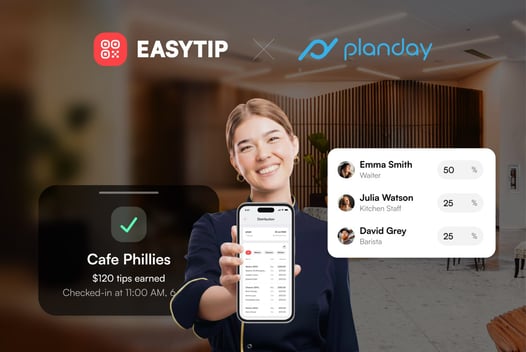
We're excited to introduce our integration with Planday, making it easier for businesses to connect staff scheduling with digital tip distribution.
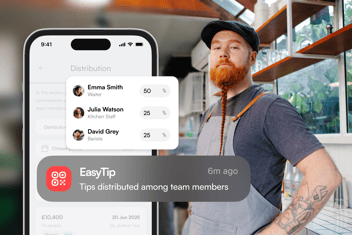
With the EasyTip and Planday integration, you can sync your team and import approved working hours directly into EasyTip. This helps simplify team management and ensures that hours worked from your connected Planday department can be used for tip distribution.
In this guide, we'll walk you through the setup process, from connecting your Planday account to adding your team members and configuring their access in EasyTip.
!Before you start
You'll need your venue's Planday portal URL and login details.
Part 1
Connect your account
1Open the Planday integration
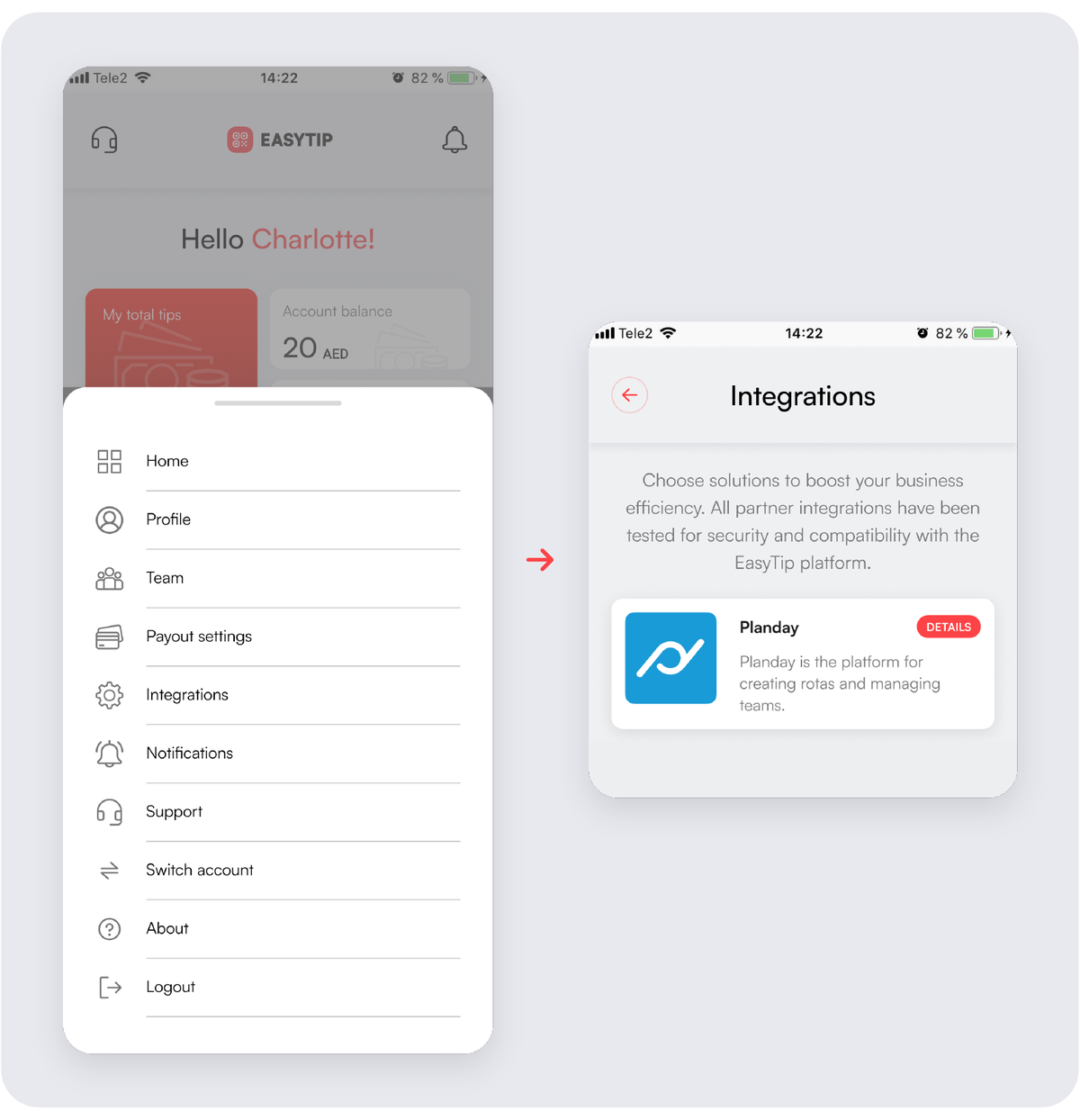
In the EasyTip app, open the menu and select Integrations. Find Planday and tap Details.
2Tap Setup
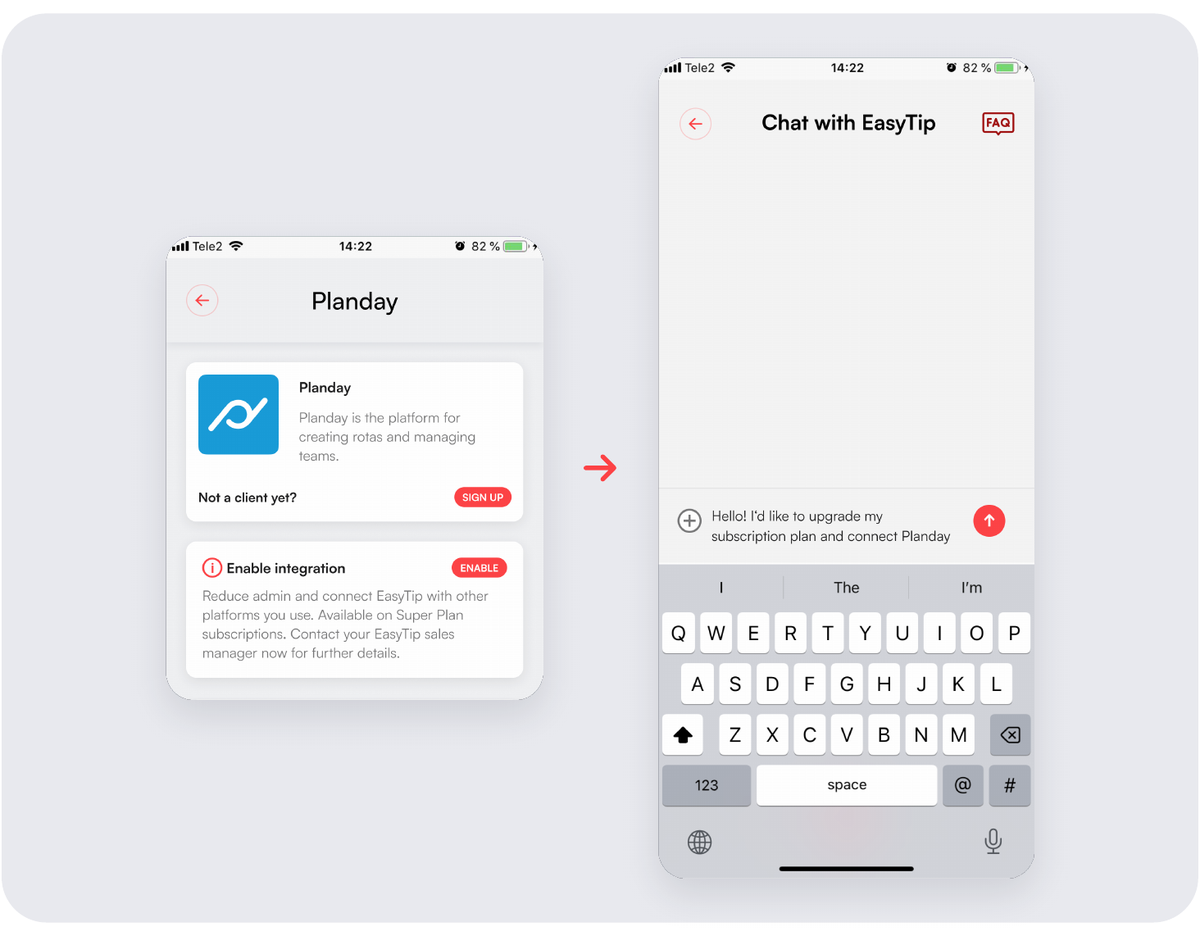
On the Planday page, tap Setup in the Integration settings section.
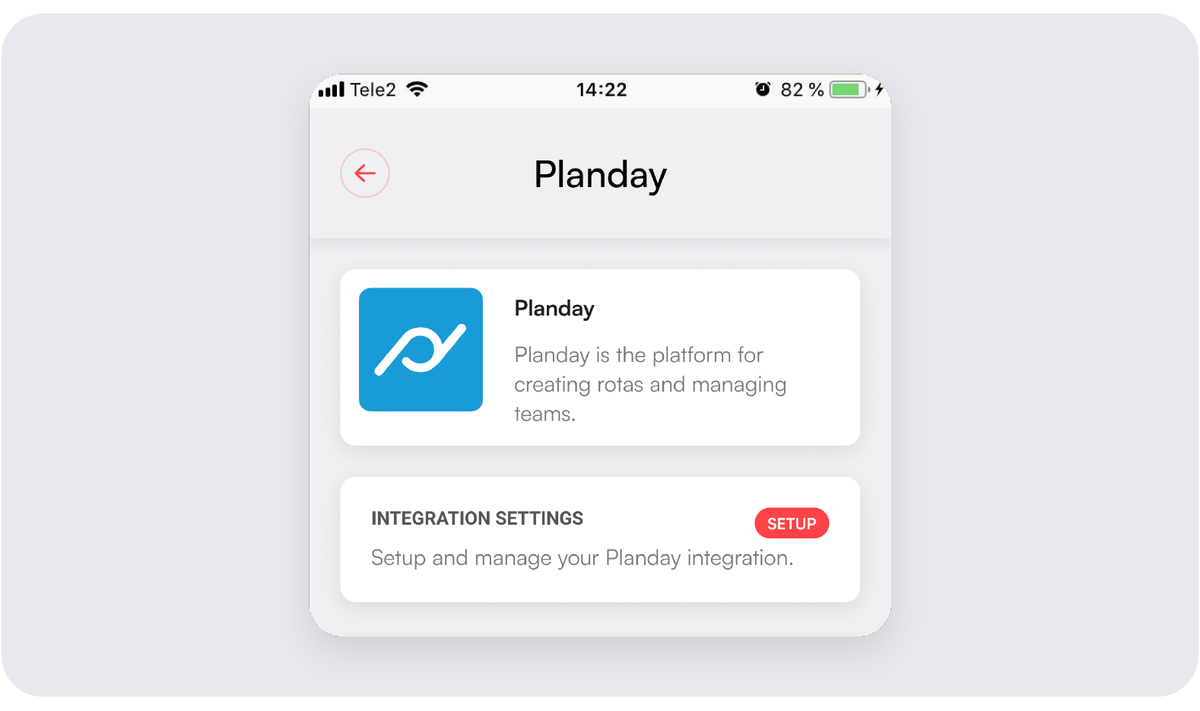
?See Enable instead of Setup?
Tap Enable to open the support chat and request access to integrations for your venue. Once access is enabled, return to the Planday integration and tap Setup.
3Continue to Planday
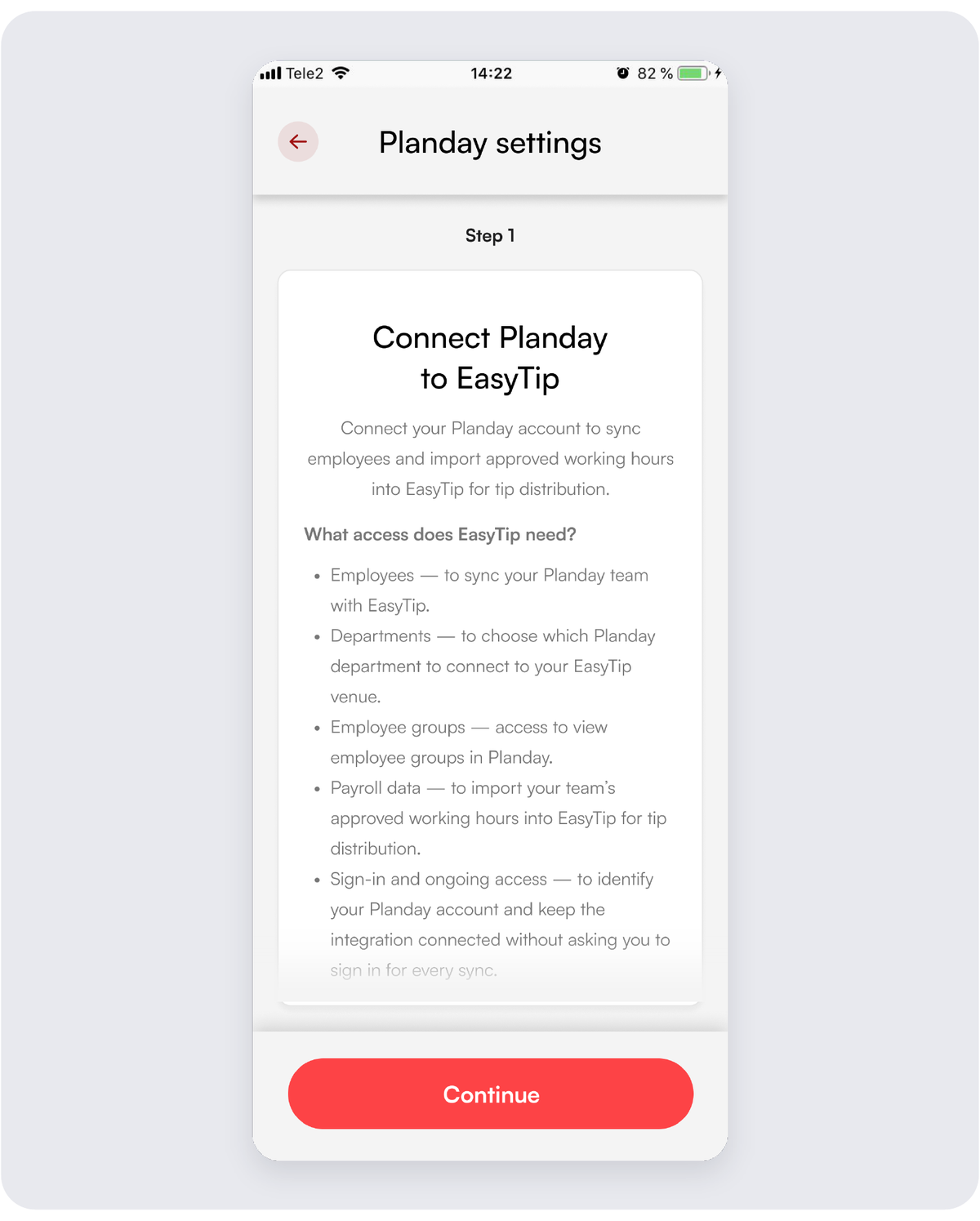
Review the information about the data EasyTip needs to access, then tap Continue. You'll be redirected to Planday.
4Sign in to Planday
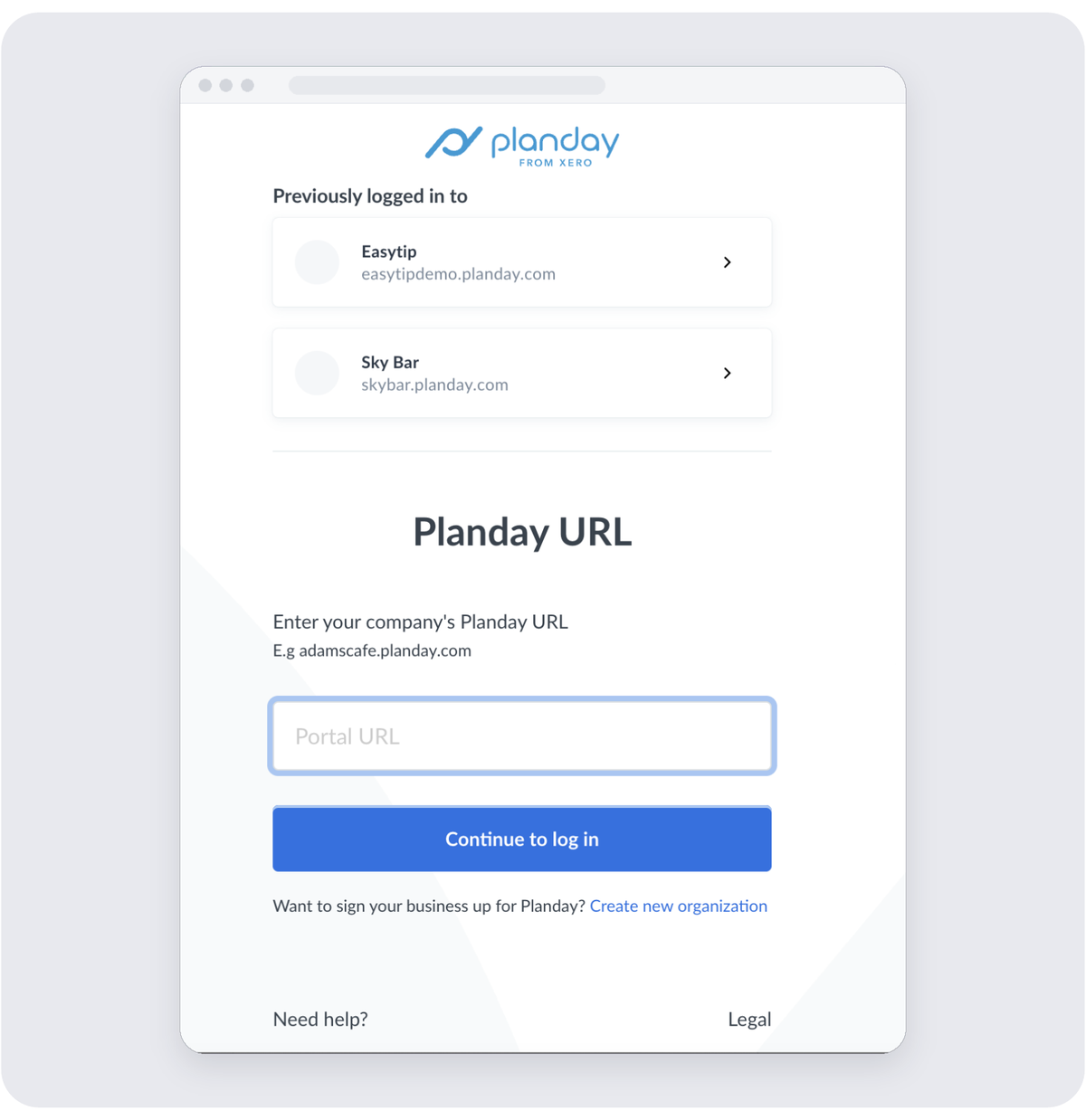
Enter your venue's Planday portal URL and select Continue to log in. If your portal appears under Previously logged in to, you can select it instead.
Sign in to your Planday account if prompted.
5Authorize access
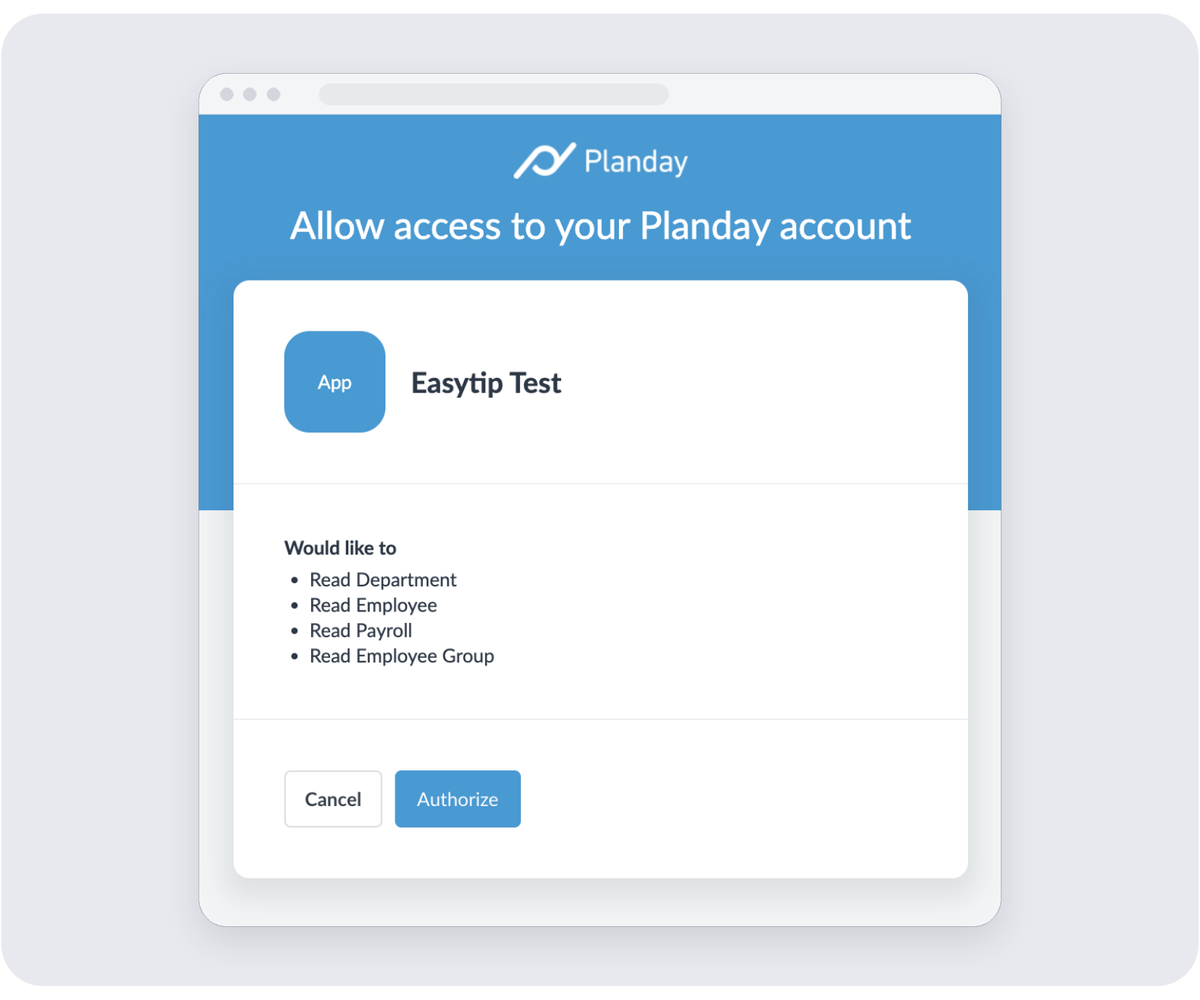
Review the requested permissions and select Authorize to allow EasyTip to access your Planday data. You'll then be redirected back to EasyTip.
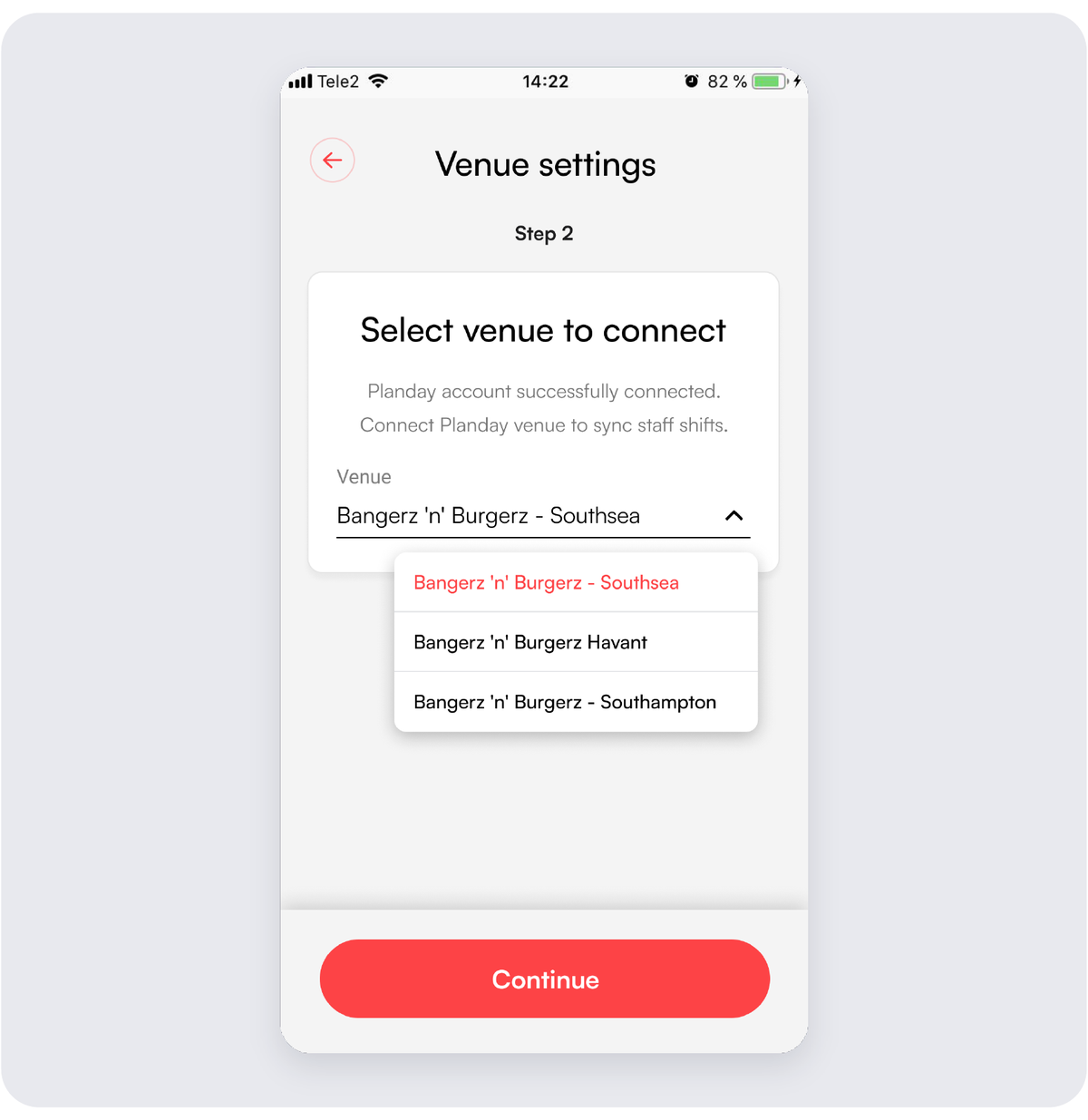
6Select your department
In the Venue dropdown, select the Planday department you want to connect to this EasyTip venue. Tap Continue.
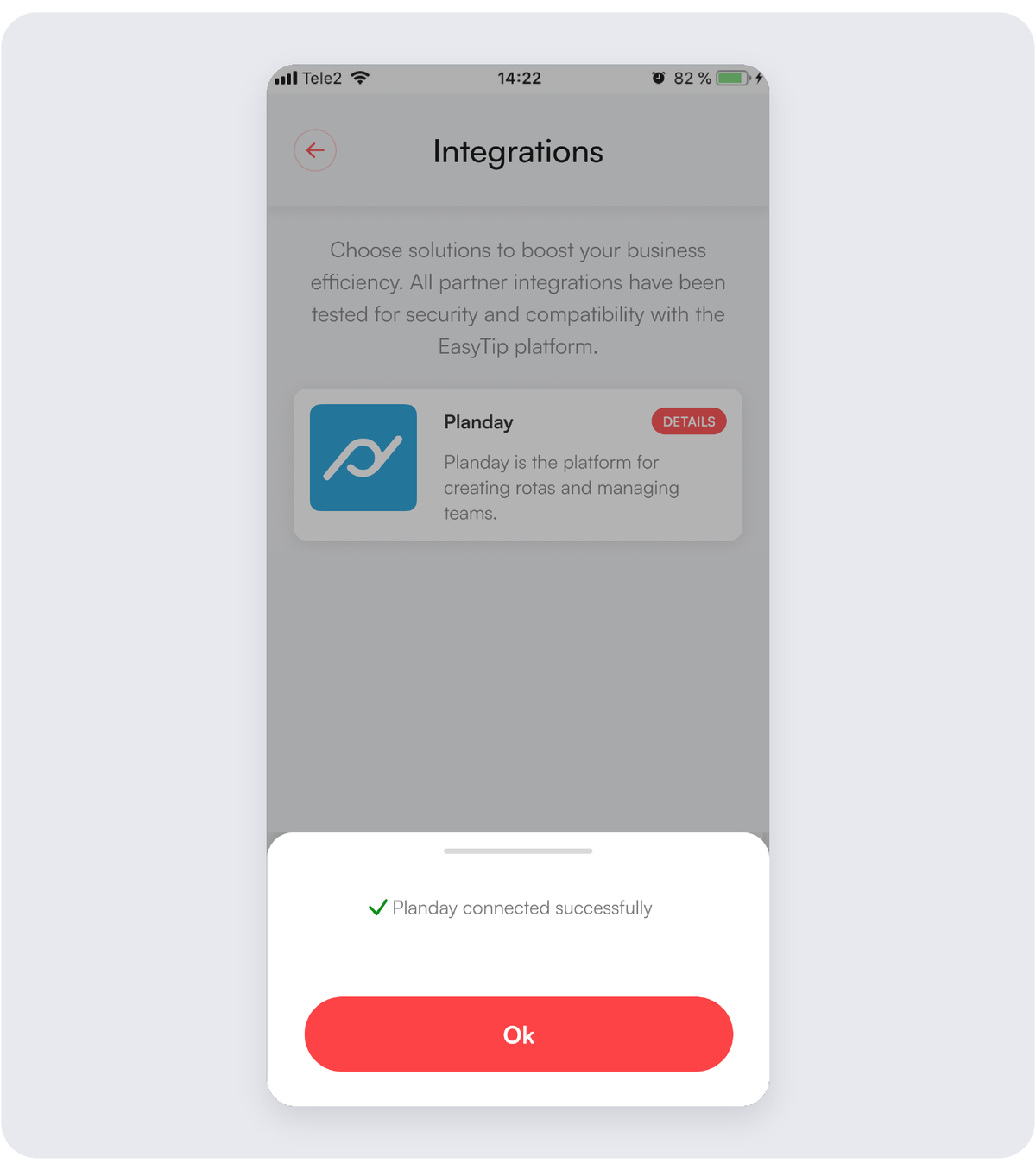
7Confirm the connection
When you see Planday connected successfully, tap Ok.
Part 2
Add your team
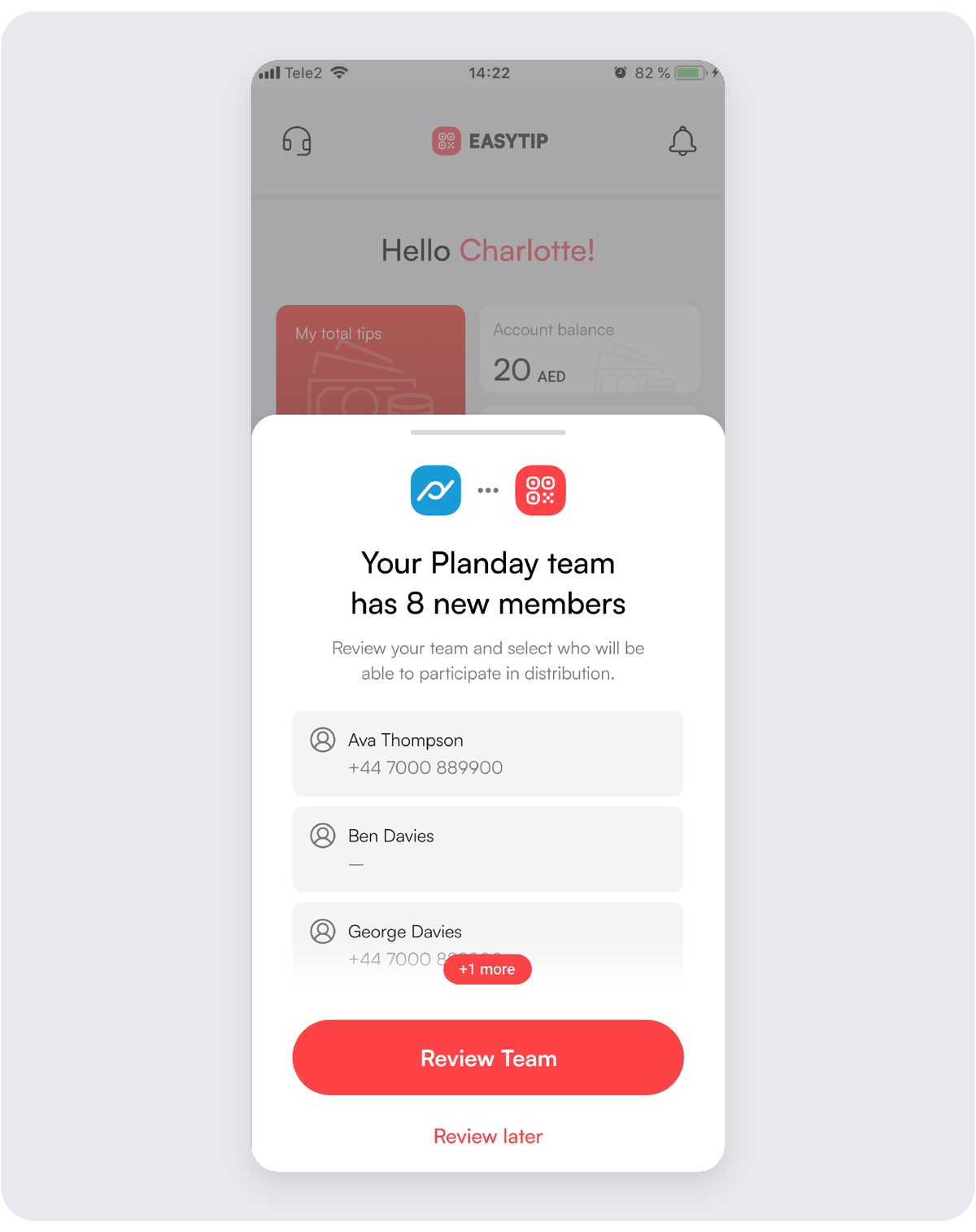
8Review new employees
The next time you open the EasyTip home screen, you'll see a notification showing new employees from Planday.
Tap Review Team to review and add them, or Review later to do this later.
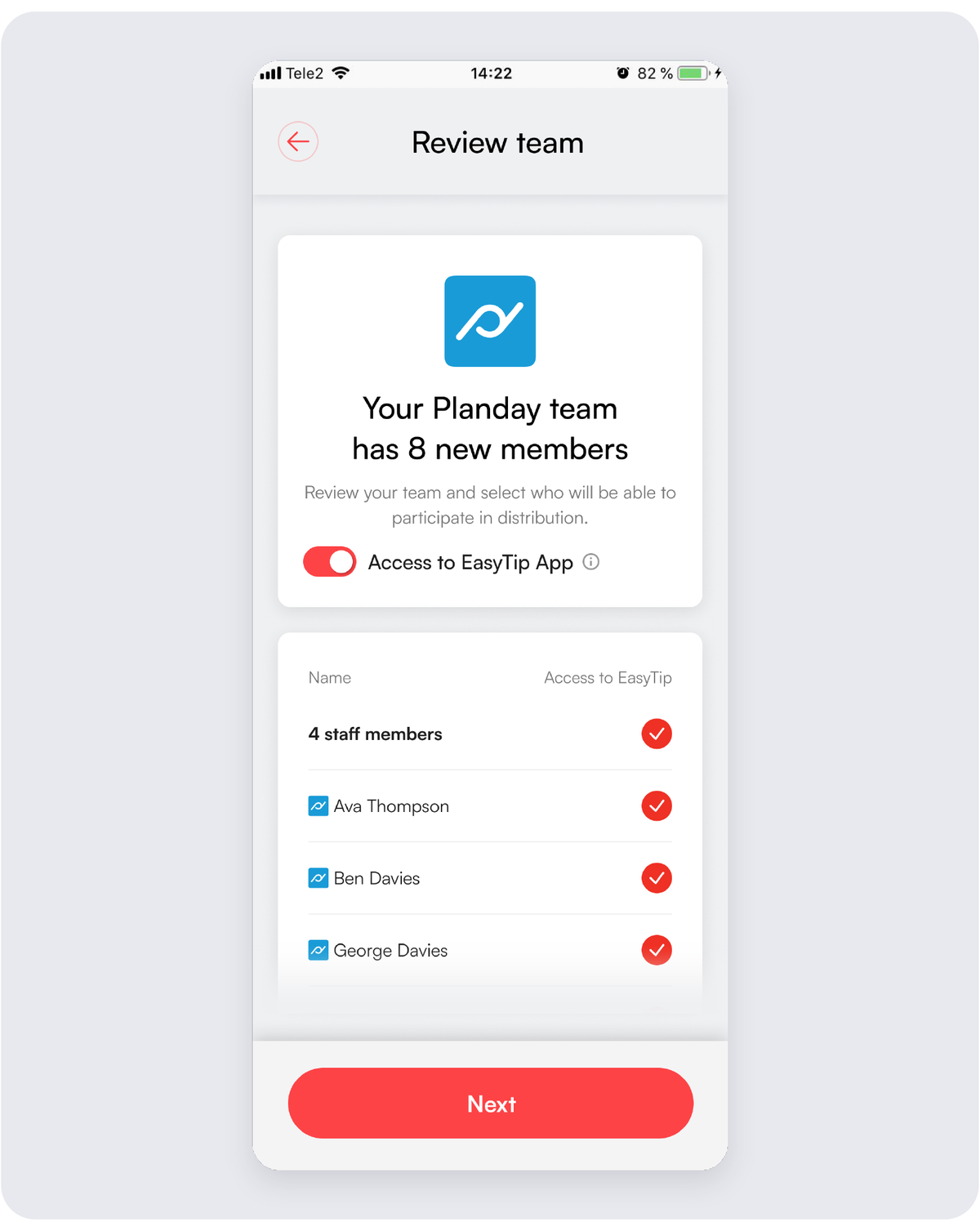
9Choose who can access the app
Choose which employees should have access to the EasyTip app and receive an SMS invitation. Only employees you grant access to will be able to sign in.
Tap Next to continue.
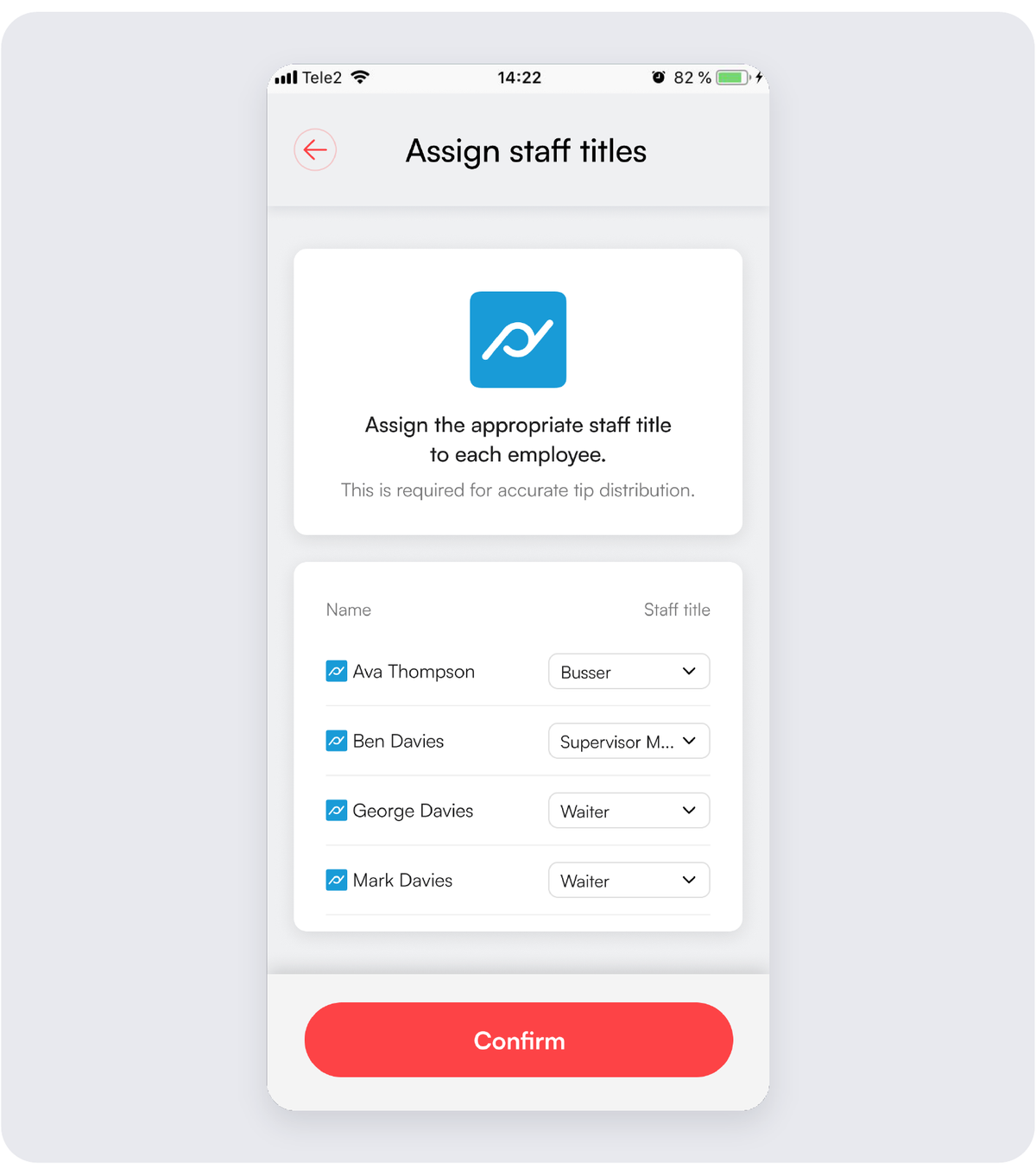
10Assign staff titles
Select an EasyTip staff title for each employee. These titles are used for tip distribution.
Tap Confirm to continue.
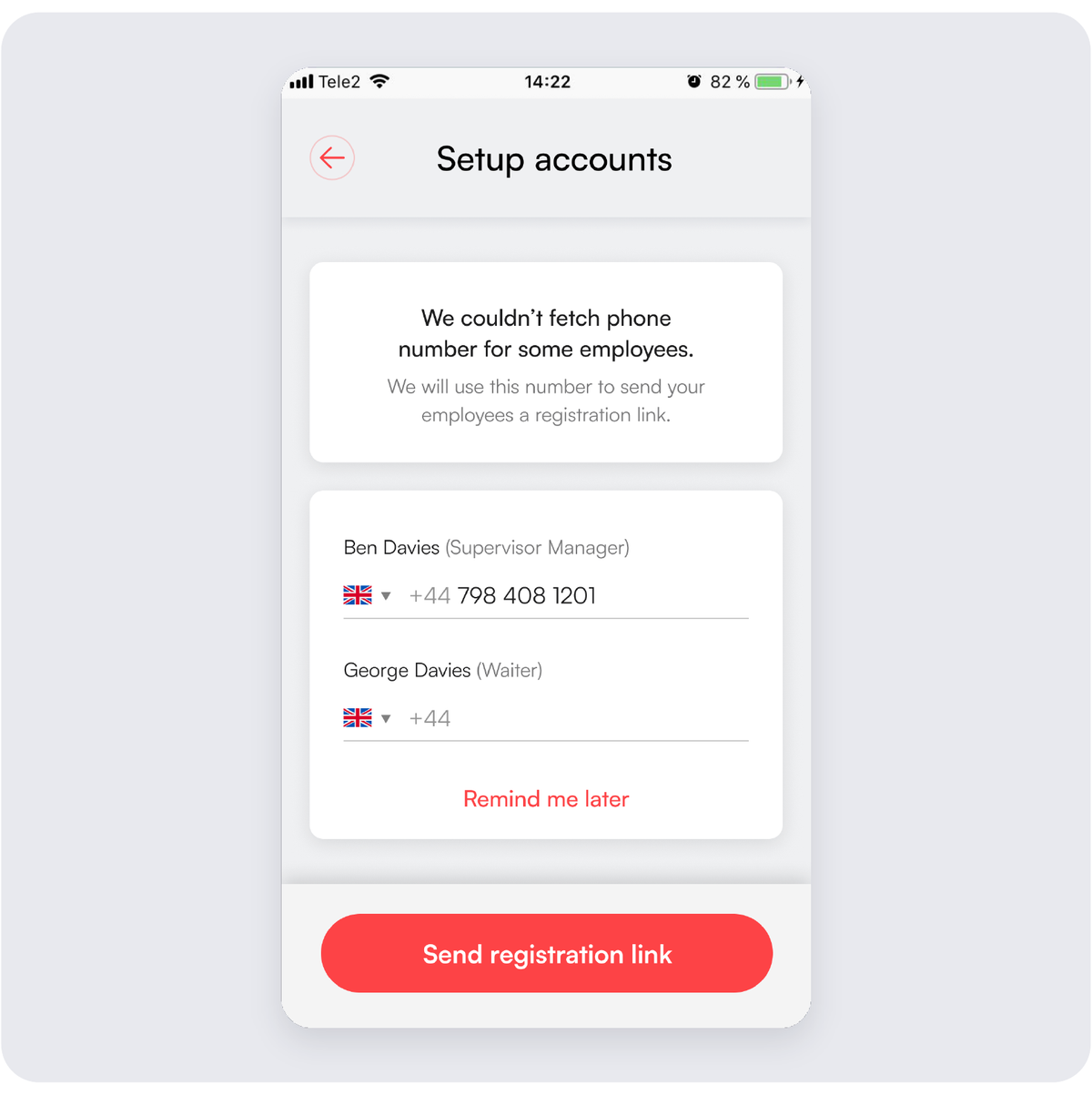
11Add missing phone numbers
EasyTip uses employees phone numbers to send SMS links to install and sign in to the app.
If a phone number is missing from Planday, you'll be prompted to add it in EasyTip. Enter the missing numbers and tap Send registration link, or tap Remind me later to do this later.
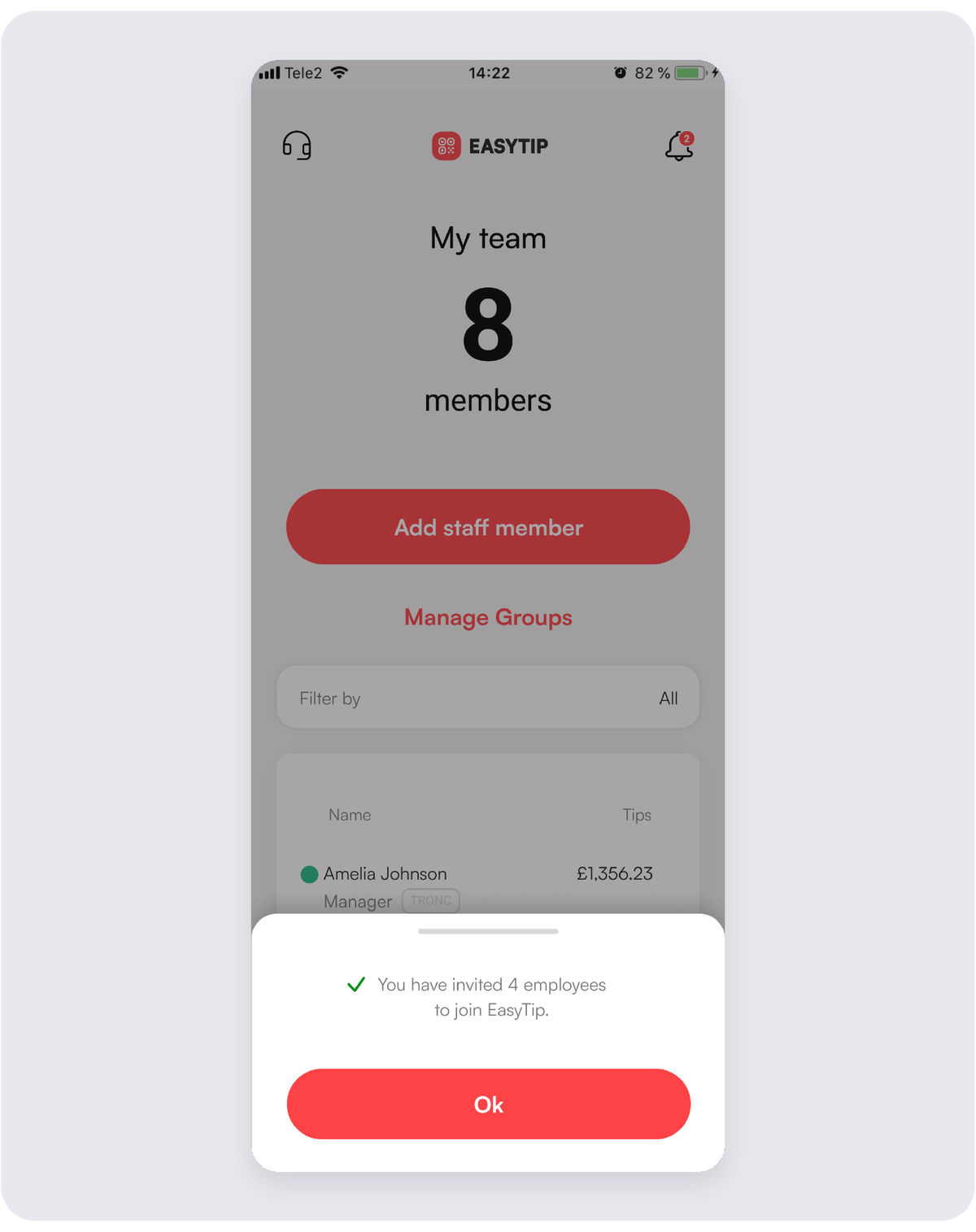
12Finish team setup
A confirmation will show how many employees you've invited to EasyTip. Tap Ok to finish.
✓Done
Your Planday integration is now set up. You can use hours worked from your connected department to distribute tips to selected staff members in EasyTip.
You're all set!
Your Planday account is now connected to EasyTip, and you can manage your team through the integration.
With staff scheduling and digital tipping working together, there's less manual admin for your managers, and tips can be distributed based on the approved hours your team has worked.
Ready to get started? Sign up for EasyTip and connect your Planday account to see how EasyTip can support your business.